Configure Agent based MFA for Windows
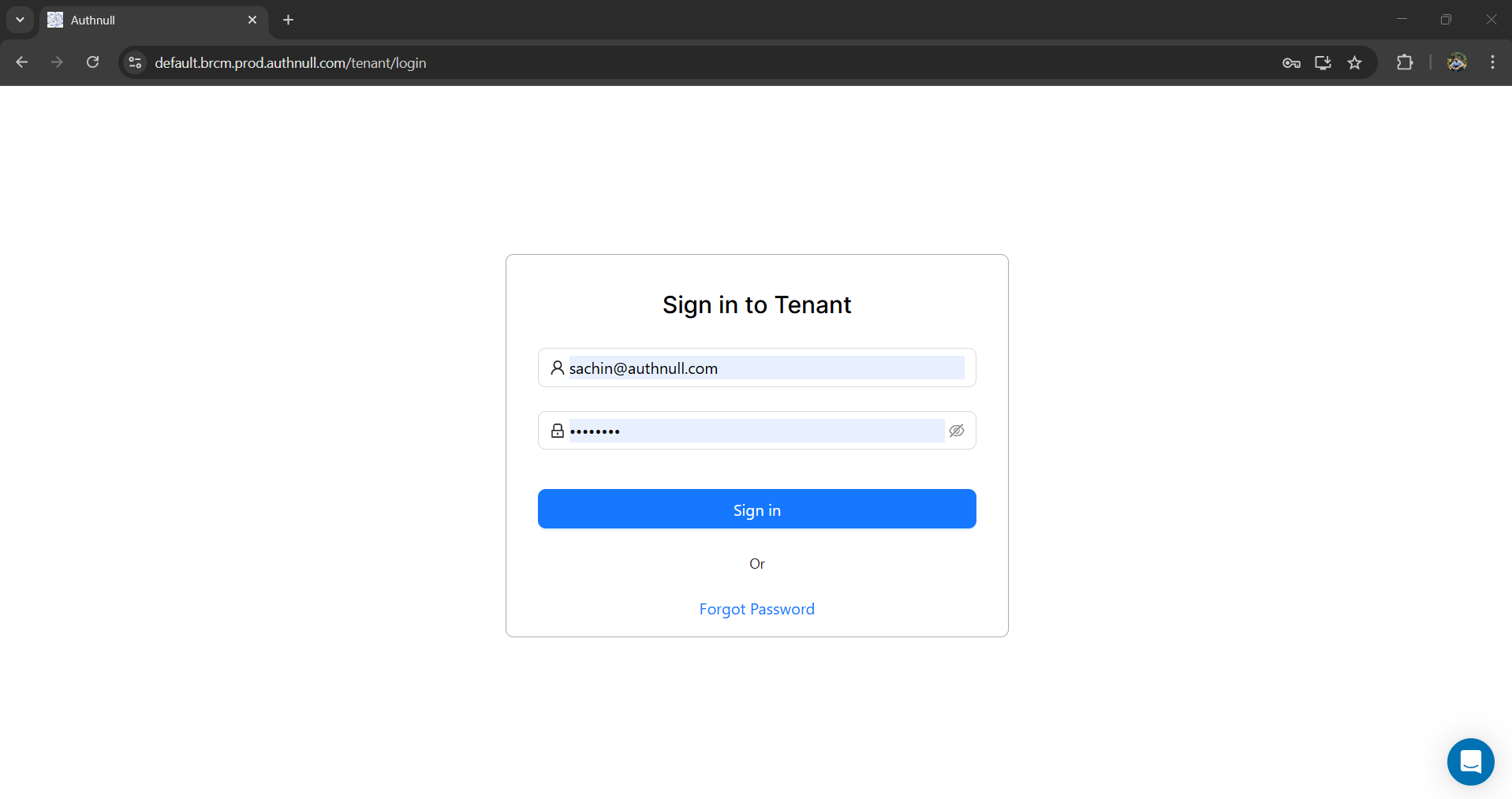
Step 1: Login to your tenant admin console
Enter your login details to access the platform.
Step 2: Navigate to Endpoints
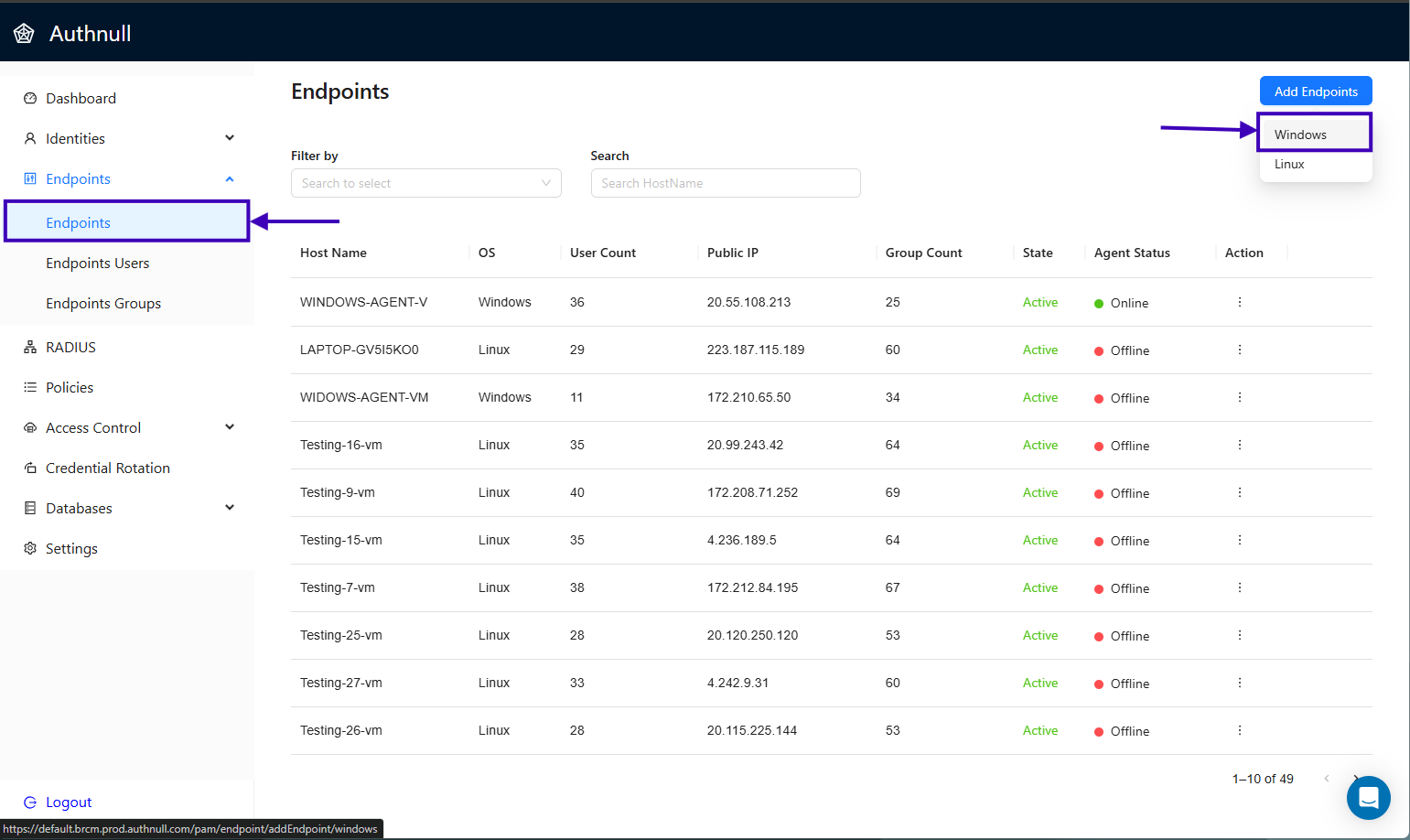
Navigate to the Endpoints under the Endpoints menu from the sidebar and click the Windows option from the Add Endpoint button in the top right corner.
Step 3: Download the File
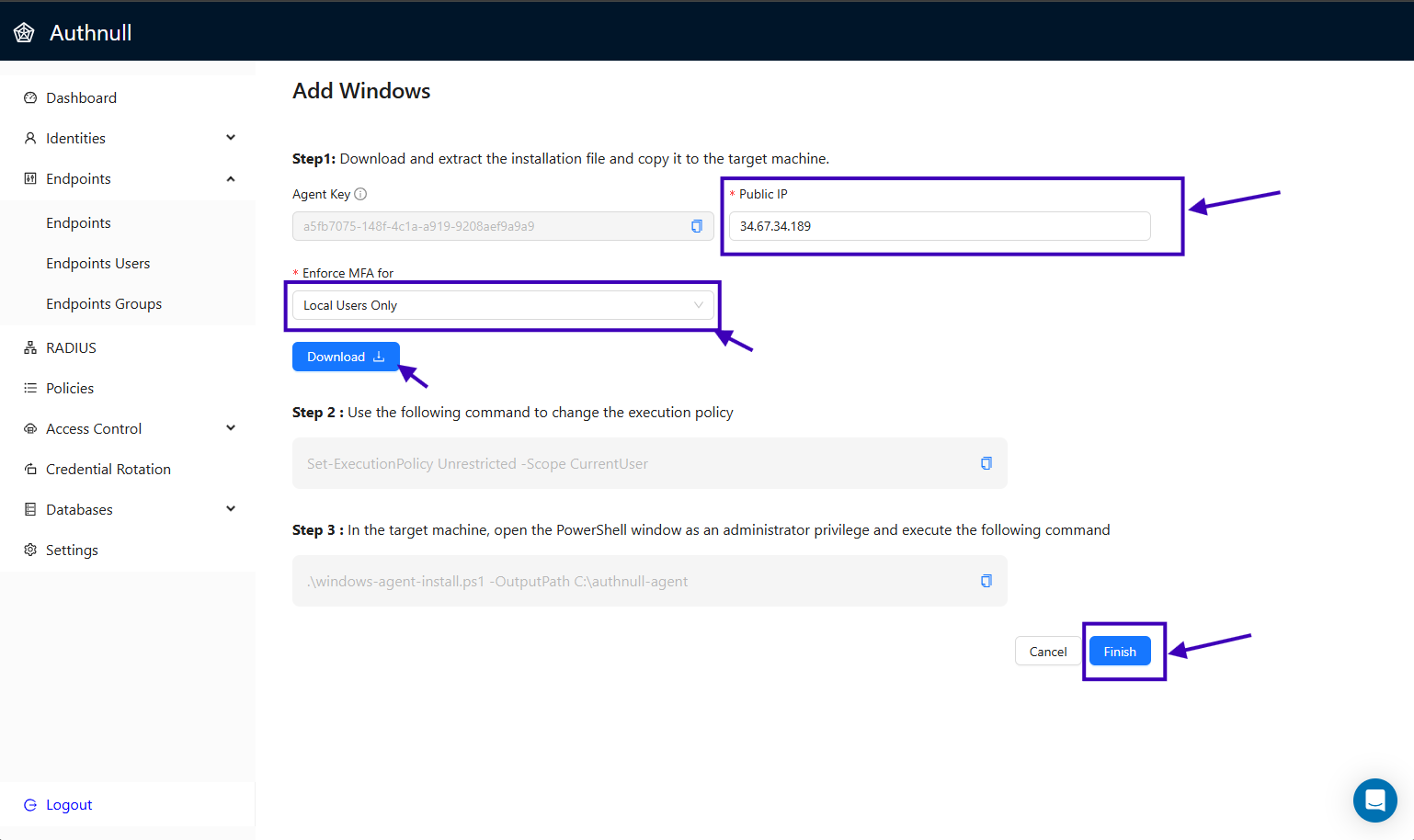
Enter the Public IP of your windows endpoint and select the Enforce MFA For option, and download and extract the installation file and copy it to the target machine.
Step 4: Make Script Executable
Use the following command to change the execution policy.
Set-ExecutionPolicy Unrestricted -Scope CurrentUser
Step 5: Install the Agent
In the target machine, open the PowerShell window as an administrator privilege and execute the following command.
.\windows-agent-install.ps1 -OutputPath C:\authnull-agent
Step 6: View Endpoint
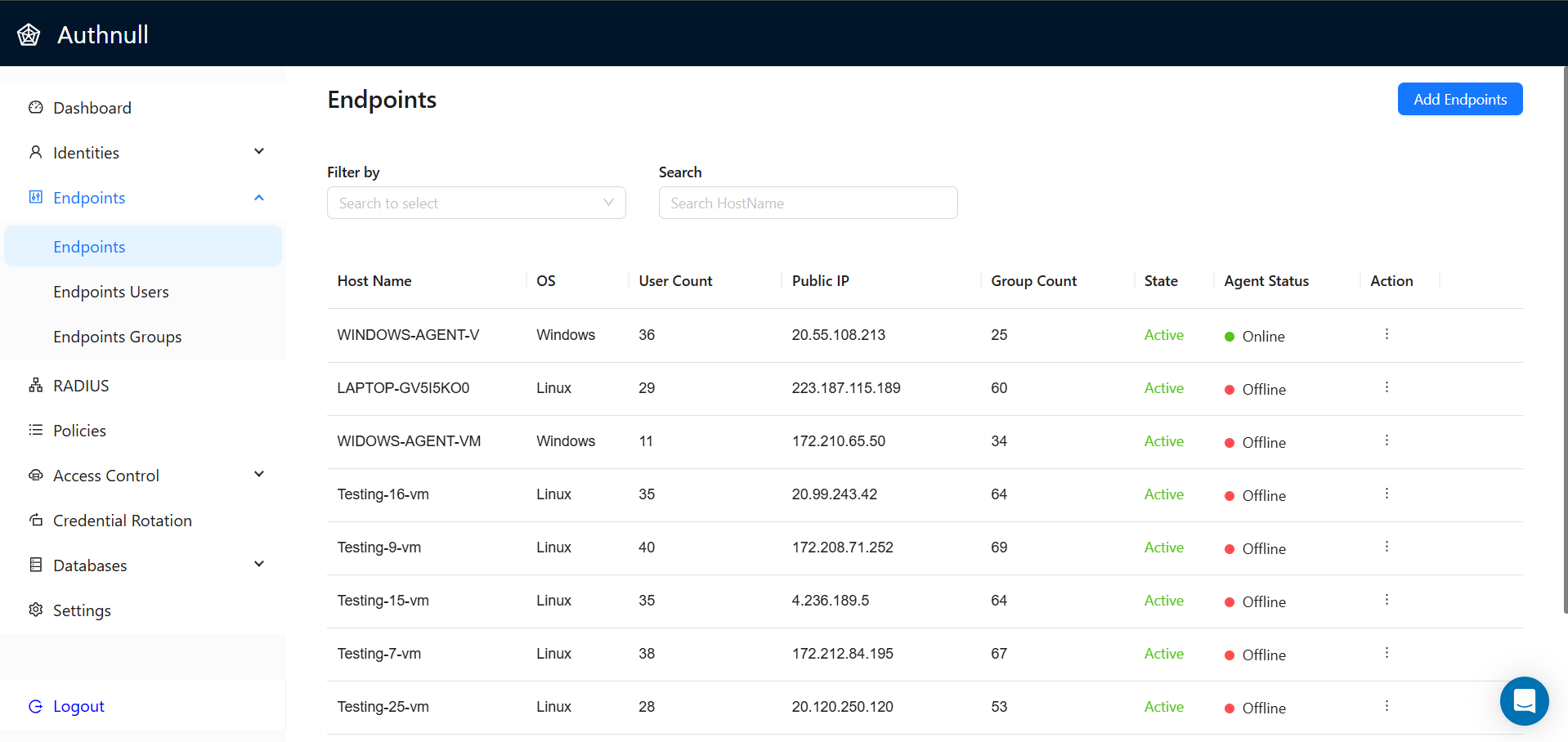
After successfully installation of the agent, Navigate to Endpoints > Endpoints screen to view the imported windows endpoint.
Step 7: View Endpoint Users
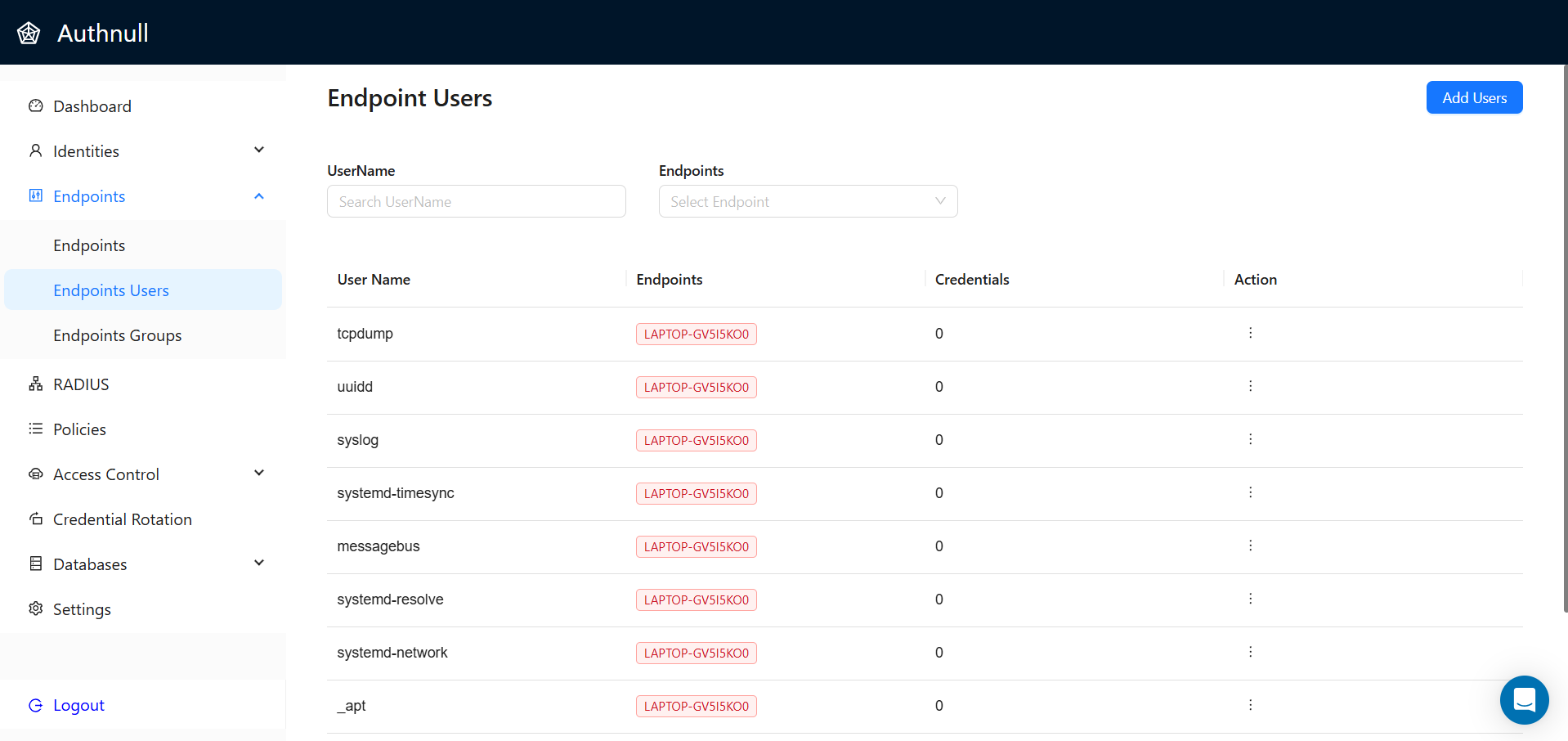
Navigate to Endpoints > Endpoints Users screen to view the imported endpoint users.